
Table of Contents
Step 1 - Console Login and Navigation to Tenants
Step 2 - Navigation to CAS Applications
Step 4 - Edit Existing CAS Applications
Step 5 - Testing CAS Applications
For Enterprise Bridge Customers
Overview
The Tenants page allows customers to manage their CAS Applications. CAS Application patterns may be entered directly as a url or as a regular expression. Regular expressions are preferred for organizations with many CAS applications because they allow you to map many service urls to a single pattern.
Please use caution when modifying these patterns. Mistakes when editing or reordering CAS Application patterns are immediately applied to your tenant and can be disruptive. We recommend that you save a copy of your CAS applications before making any changes.
Step 1 - Console Login and Navigation to Tenants
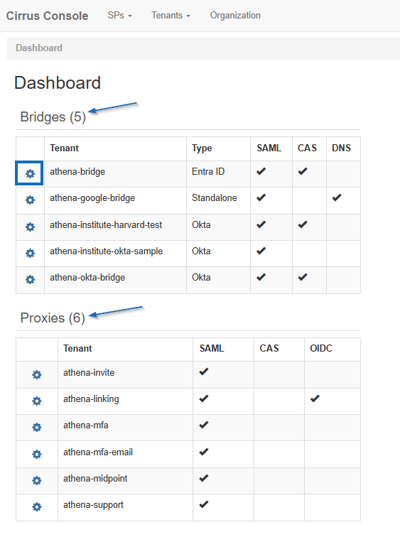
Login to the Cirrus Console by clicking the “Cirrus Console” button from the Cirrus Identity website top right of the navigation bar. Once logged in, select the gear icon next to the tenant you are needing to update from the main dashboard.
Step 2 - Navigation to CAS Applications
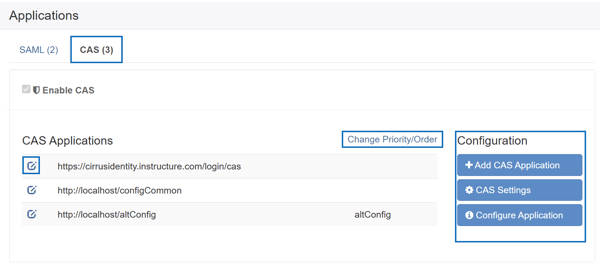
Scroll to the bottom of the page until you reach the “Applications” section of the page. You will be able to adjust your list to view only your CAS applications.
On the right side of the table, you will see options to configure new CAS Applications as well as view the CAS Settings and important URLS under “Configure Application”.
On the table, you will see an option to edit existing CAS Applications as well as the option to change the priority of the existing applications.
Step 3 - Add CAS Application
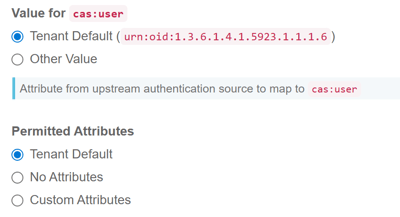
Use the “+Add CAS Application” option under “Configuration” to add a CAS Application to your tenant. Each login profile and set of attributes will have its own Entity ID Suffix. There is no Entity ID Suffix for the default.
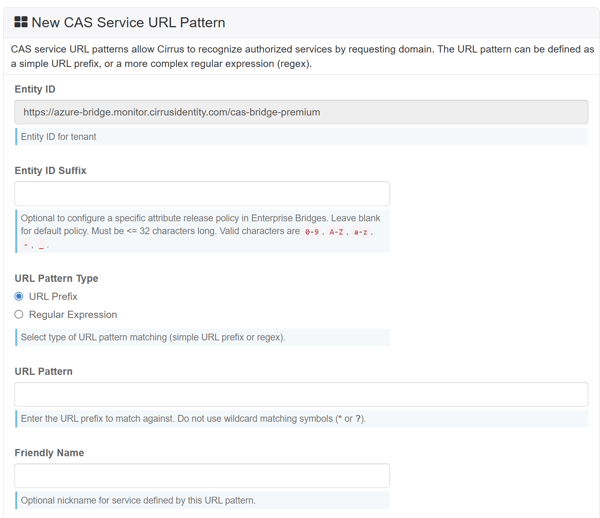
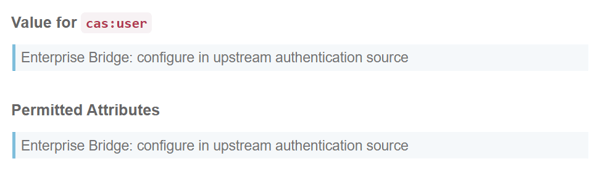
For Enterprise Bridge Customers, the “Value For cas:user” and Permitted Attributes are configured in upstream authentication source.
For Standalone Bridges and Proxies, the “Value For cas:user” and Permitted Attributes are set by your organization within the Cirrus Console directly.
Step 4 - Edit Existing CAS Applications
On the table, you will see an option to edit existing CAS Applications as well as the option to change the priority of the existing applications.
When editing existing CAS Applications, you are given the same fields as if you were creating a new application but with the information pre-filled from when it was created or last edited.
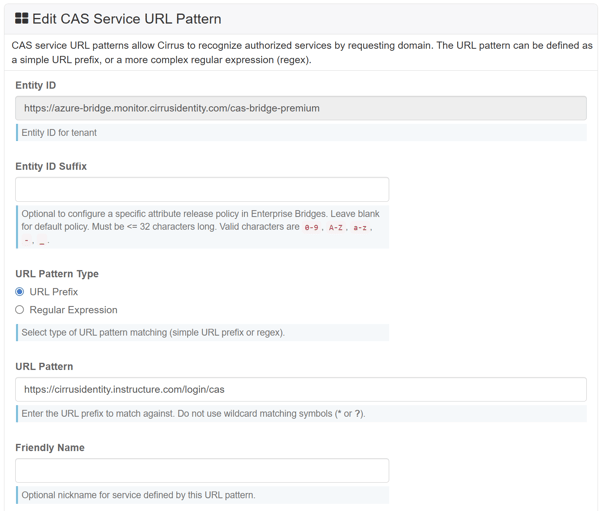
For Enterprise Bridge Customers, the “Value For cas:user” and Permitted Attributes are configured in upstream authentication source.
For Standalone Bridges and Proxies, the “Value For cas:user” and Permitted Attributes are set by your organization within the Cirrus Console directly.
Step 5 - Testing CAS Applications
Cirrus provides a debug endpoint that you can use to verify that your CAS service urls are accepted and that the correct attributes are released. You can test each of your service urls with this process.
The URL for testing can be found within your Bridge Tenant under “Configure Application”. You will also need the Service URL for the application you are wanting to test.
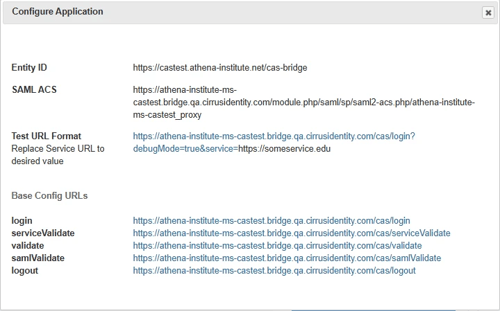
Then go to a tool like https://www.urlencoder.org/ to encode the service url and replace https://someservice.edu with the encoded url. For example, if the service url is https://apps.campus.edu, then your test url will be:
https://athena-institute-ms-castest.bridge.qa.cirrusidentity.com/cas/login?debugMode=true&service=https%3A%2F%2Fapps.campus.edu
Go to the url to validate that you are redirected to your IdP login screen and then the debug screen. On the debug screen, verify that the attributes are correct for the profile configured for the suffix for the Bridge you are testing.
For Enterprise Bridge Customers
Configuration of Enterprise Application within IdP
If you need to configure an additional application outside of the CAS Default due to additional suffixes entered into the “Configure CAS Services” screen within the console, you will need to ensure the Entity ID of the application has correct format. This is how the Enterprise Bridge knows which enterprise application to send the user to in order to receive the correct settings and attributes. An example of mapping and entity ID generation is shown below.
|
CAS Service URL Pattern (Regular Expression) |
Suffix |
Enterprise Application |
Entity ID for Enterprise Application |
|
https?://apps\.campus\.edu/.* |
(none) |
Cirrus CAS Bridge - Default |
https://auth.campus.edu/cas-bridge |
|
https?://localhost(:.+)?.* |
(none) |
Cirrus CAS Bridge - Default |
https://auth.campus.edu/cas-bridge |
|
https?://campus\.eab\.com/.* |
/banner |
Cirrus CAS Bridge - Banner |
https://auth.campus.edu/cas-bridge/banner |
|
https?://(banner|orientation)(-test)?\.campus\.edu/.* |
/banner |
Cirrus CAS Bridge - Banner |
https://auth.campus.edu/cas-bridge/banner |
|
https?://payment\.campus\.edu/.* |
/payment |
Cirrus CAS Bridge - Payment |
https://auth.campus.edu/cas-bridge/payment |
Ongoing Support
If you encounter any issues, you can reach us at our support email or via our support portal.