
Table of Contents
Console Login and Navigation to Tenants
Navigation to SAML Applications
Edit Existing SAML Applications
Overview
The Tenants page allows customers to manage their SAML Applications. Each SAML Application represents an integration between your tenant and an application (sometimes called Service Provider, or SP) that uses SAML for authentication.
SAML Applications are configured using SAML metadata, which is provided by the Service Provider. This metadata defines how the application and your tenant communicate and trust one another, including details such as the application’s Entity ID, Assertion Consumer Service (ACS) URL(s), supported bindings, and certificates used to secure authentication responses.
Each SAML Application is managed independently. Changes to a SAML Application affect only that specific integration and determine how authentication requests and responses are processed for the associated Service Provider.
Please use caution when modifying SAML Application metadata. Changes are applied to your tenant after processing and may disrupt authentication if configuration values are incorrect. We recommend saving a copy of the existing metadata before making any changes.
Console Login and Navigation to Tenants
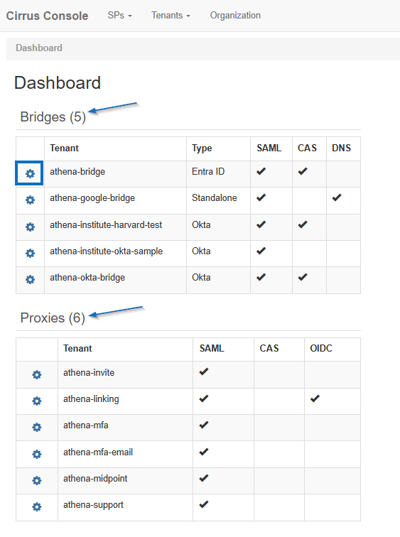
Login to the Cirrus Console by clicking the “Cirrus Console” button from the Cirrus Identity website top right of the navigation bar. Once logged in, select the gear icon next to the tenant you are needing to update from the main dashboard.
Navigation to SAML Applications
Scroll to the bottom of the page until you reach the “Applications” section of the page. You will be able to adjust your list to view only your SAML applications.
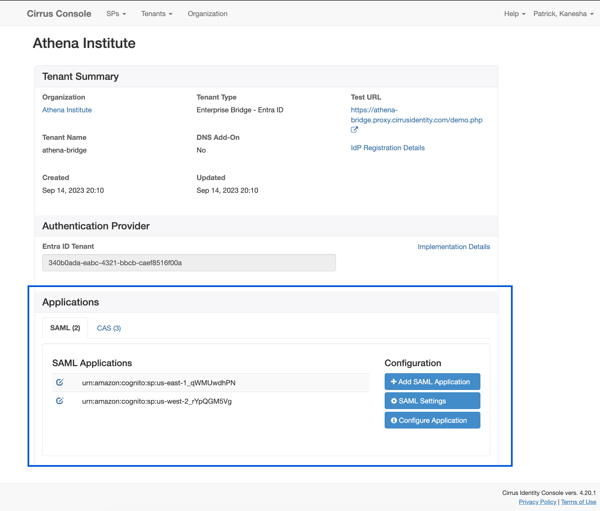
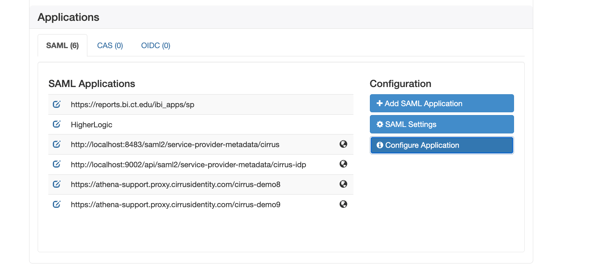
On the right side of the table under ‘Configuration’, you will see three options.
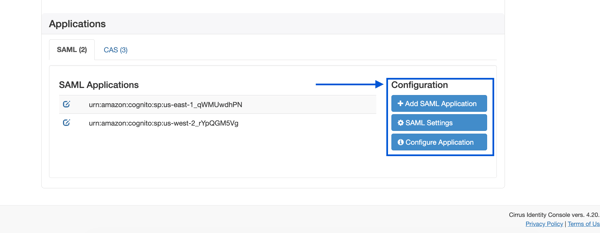
- +Add SAML Application:
See section ‘Add SAML Application’
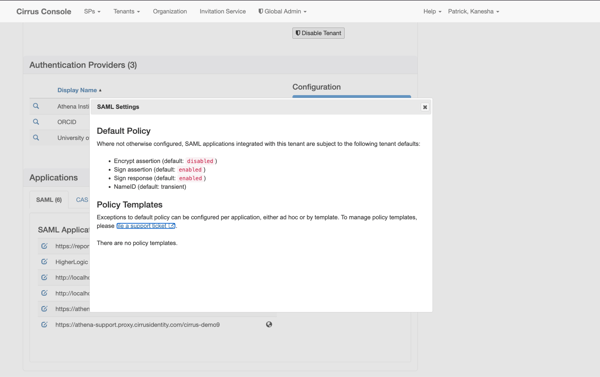
- SAML Settings:
Select SAML Settings to view the default SAML configuration and policy settings applied to applications within your tenant. Depending on your tenant configuration, this page may display information such as assertion signing and encryption settings, NameID format, and policy templates used to manage application-specific exceptions.
- Configure Application:
Select Configure Application to view SAML configuration details associated with your tenant, including values that may be required when configuring or troubleshooting integrations with a Service Provider.
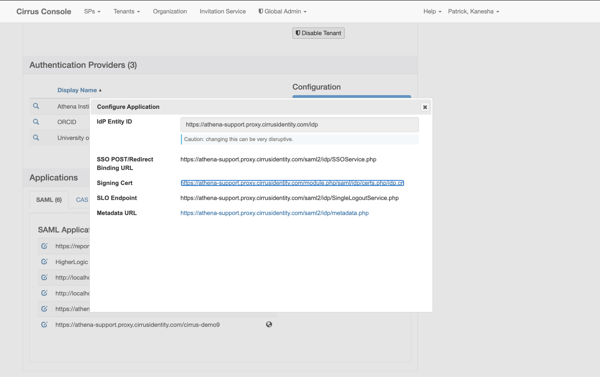
On the left side of the table, you will see a pencil in a box option to edit existing SAML Applications. The globe icon identifies applications that have a Custom policy configured. Unlike applications using the tenant default or a policy template, these applications have one or more policy settings that have been customized.
See section: Edit Existing SAML Application
Add SAML Application
Select the ‘+Add SAML Application’ icon under ‘Configuration’ to add a SAML Application to your tenant.
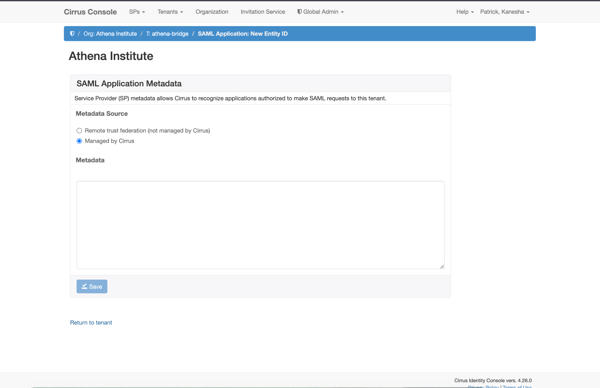
After selecting ‘+Add SAML Application’, you will be directed to the SAML Application Metadata page. Select the appropriate Metadata Source, provide the required Service Provider metadata, and click Save to add the application to your tenant.
Edit Existing SAML Applications
Select the pencil icon next to the SAML Application you wish to edit. You will be directed to the SAML Application Metadata page, where you can update the metadata or remove the application. Click Save to apply any changes.
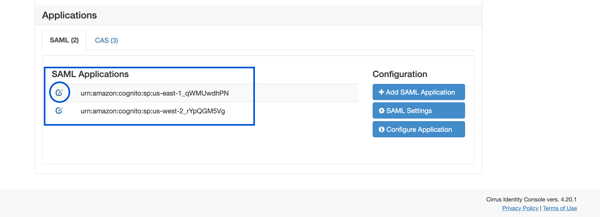
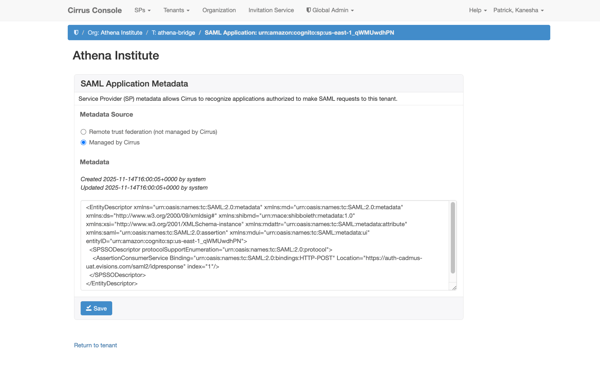
Note: The available configuration options for SAML application metadata vary by tenant type. Depending on the tenant you are managing, your view may include additional or different configuration settings than those shown in this guide.
Ongoing Support
If you encounter any issues, you can reach us at our support email or via our support portal.